In the fast-paced world of trading, every second counts. Switching between your research platform and your brokerage app can lead to missed opportunities or "fat-finger" errors. Intellectia has solved this by integrating SnapTrade, a secure API that bridges the gap between AI-driven insights and real-world execution.
Here is how you can set up your integrated trading desk in minutes.
Step 1: Initiate the Trading Interface
Start by navigating to the stock you are interested in (e.g., MU - Micron Technology Inc). On the Overview page, you’ll see the real-time price action and AI analysis. To begin the connection process, simply click the golden "Trade MU" button located at the top right of the dashboard.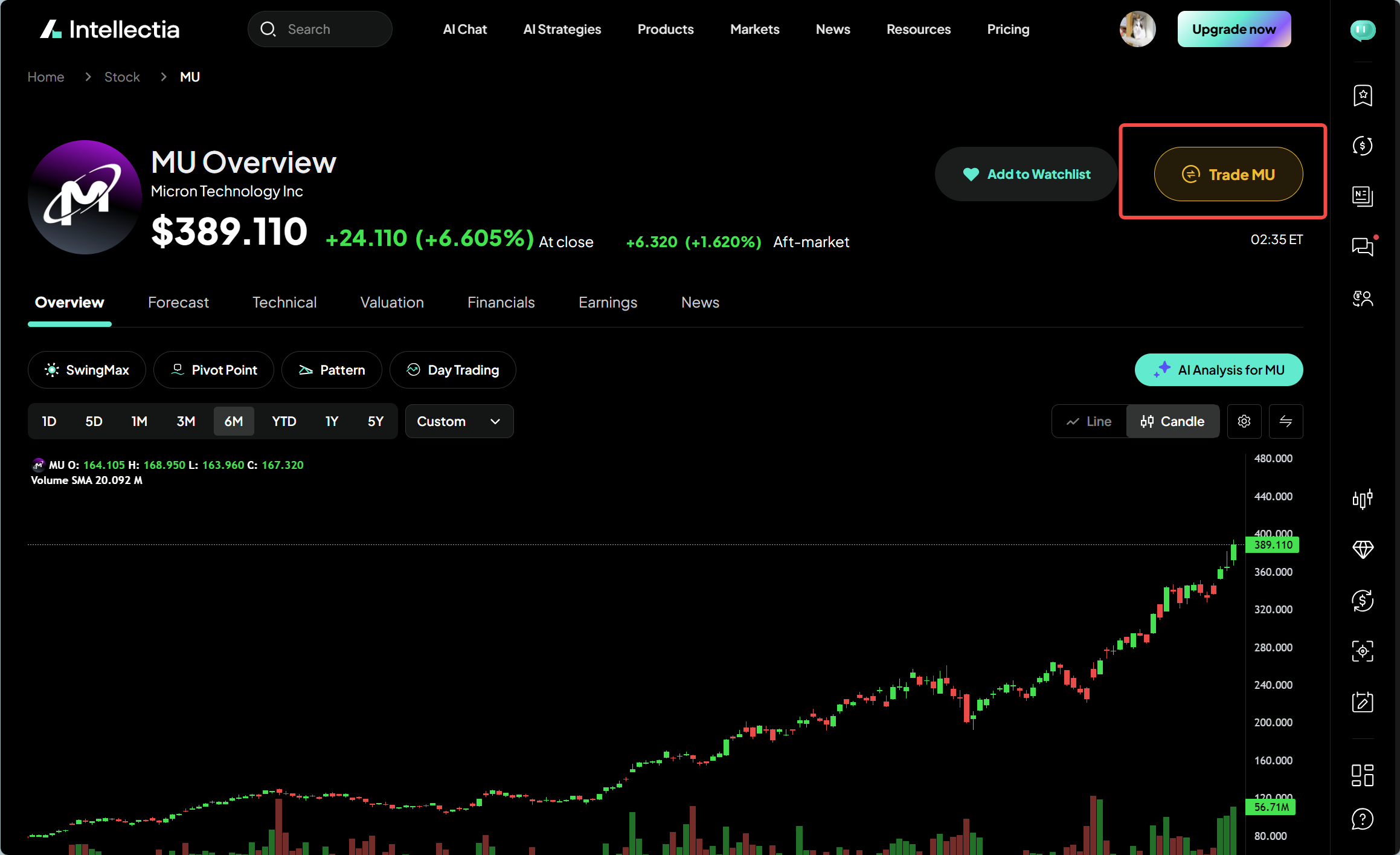
Step 2: Choose Your Broker
Once clicked, a side panel titled Brokers will appear. Intellectia, powered by SnapTrade, supports a wide range of popular brokers, including:
Webull US
tastytrade
Alpaca (and Alpaca Paper for practice)
E*Trade
Wealthsimple
Stake Australia
Scroll through the list and select the brokerage where you hold your funds.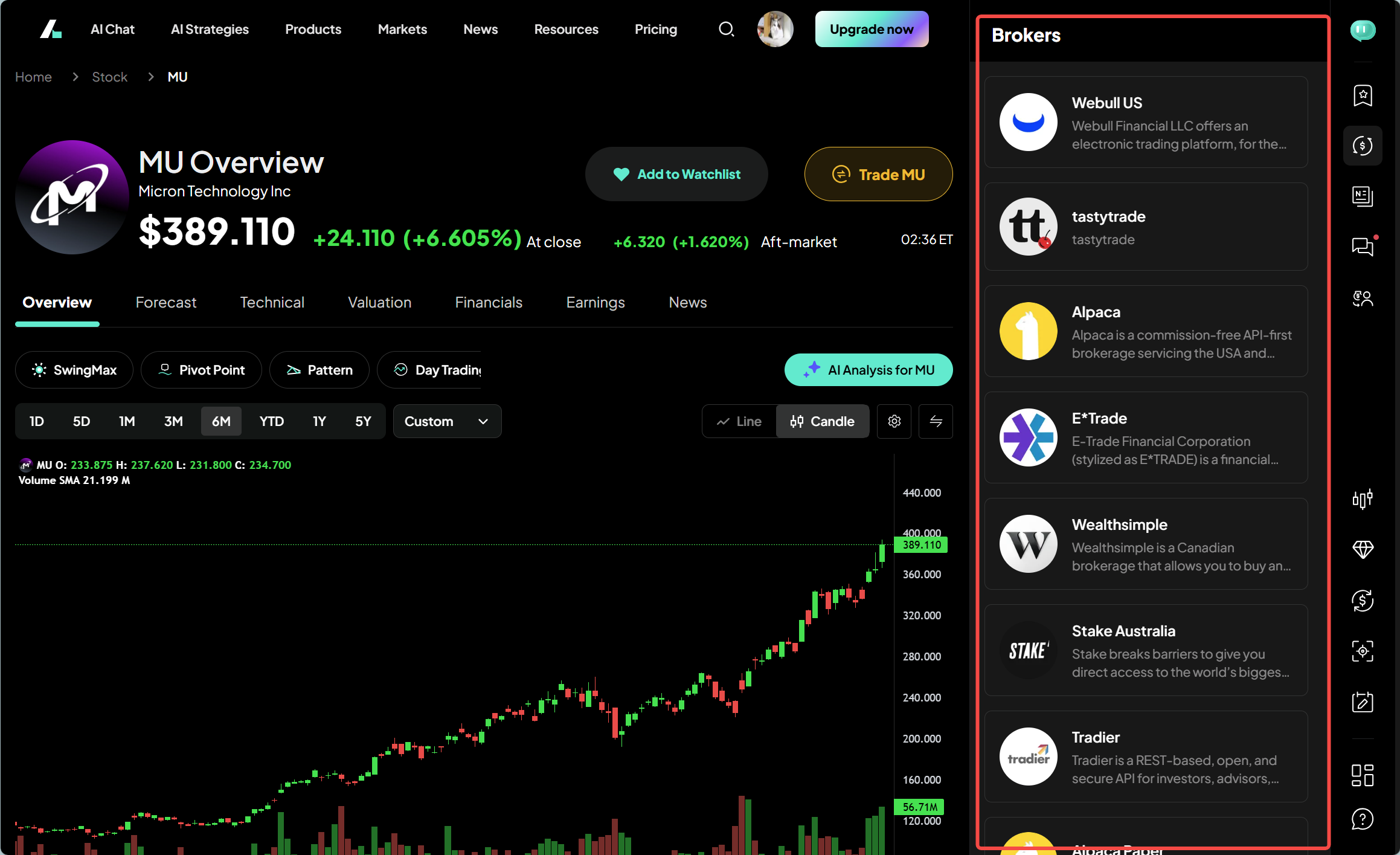
Step 3: Unlock Trading with "TradePlus Pack"
To enable direct execution, Intellectia requires the TradePlus Pack. A popup will appear prompting you to subscribe.
Cost: Currently offered at a discounted rate (e.g., $1.99/month).
Benefit: This unlocks the ability to place orders directly from Intellectia and provides a unified view of your portfolio across multiple brokers.
Step 4: Verify Your Account Overview
After successfully connecting (which involves a secure OAuth login to your broker), your Account sidebar will update. You can now see:
Account Balance: Your total buying power.
Positions: A list of your current holdings (e.g., TSLA, PLTR, DKNG) with real-time P&L (Profit and Loss) tracking.
Account Selection: If you have multiple accounts, you can switch between them using the dropdown menu.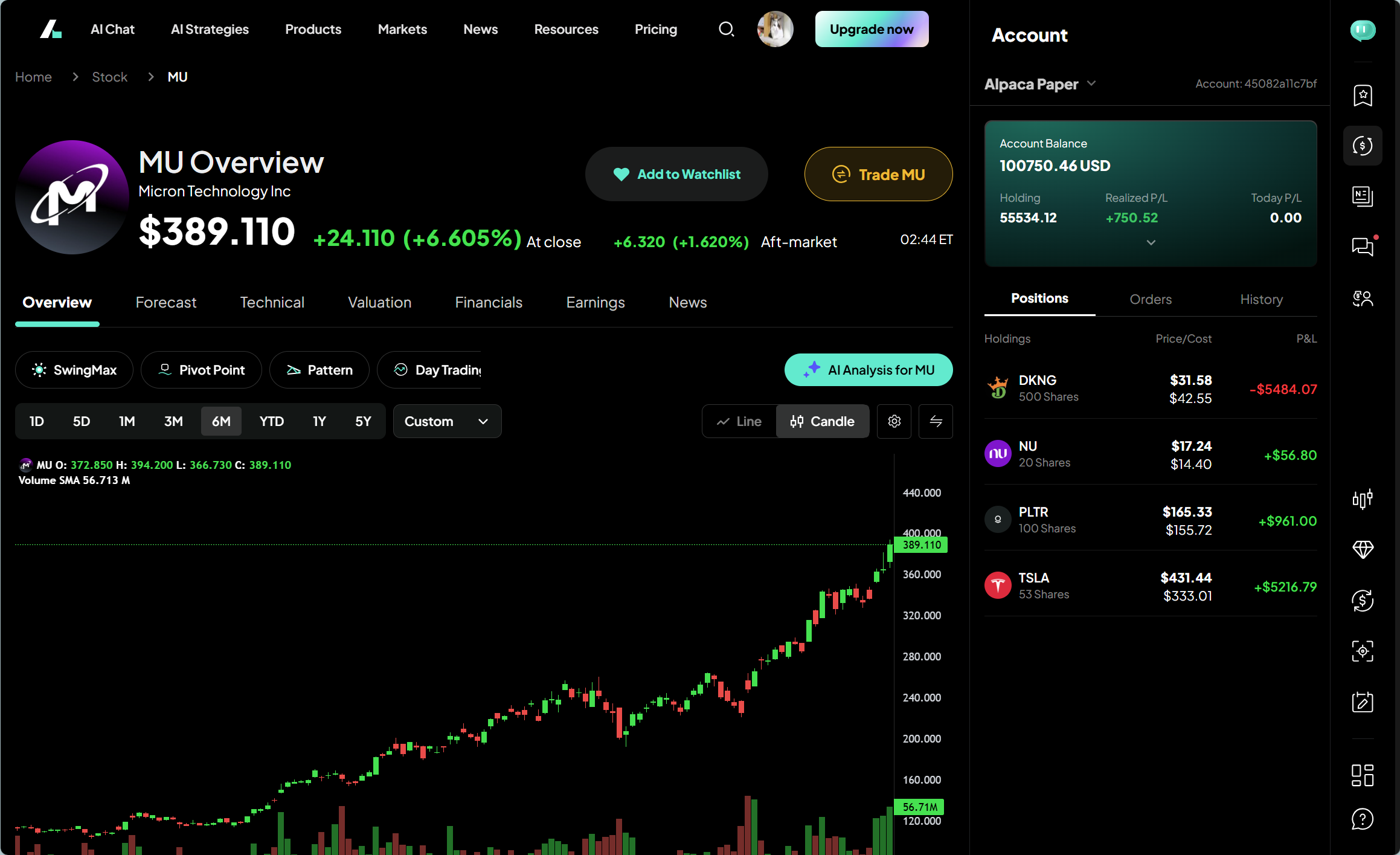
Step 5: Configure Your Trade
With your account linked, clicking "Trade" will now open the order configuration panel. You can customize your entry precisely:
Order Type: Choose between Market, Limit, or Stop orders.
Quantity: Enter the number of shares (e.g., 30 shares).
Price: Set your Limit Price.
Time in Force: Select options like GTC (Good-Til-Canceled) or Day. The system will automatically calculate your Estimate Cost to ensure you have sufficient buying power.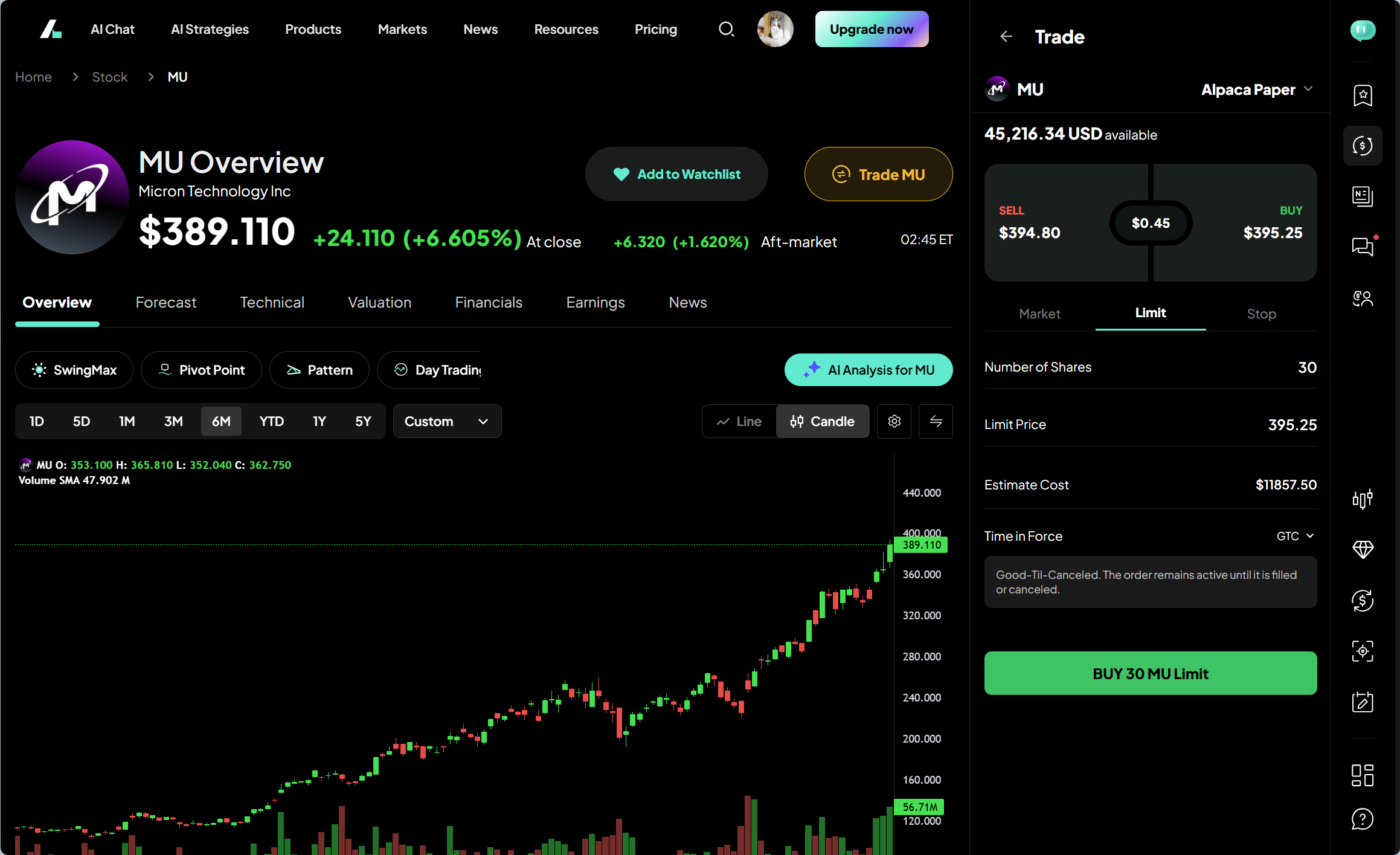
Step 6: Review and Submit
Before the order hits the market, Intellectia provides an Order Summary screen. Review the details:
Action: Buy/Sell
Total Amount: Estimated total cost including fees.
Disclaimer: Ensure you understand that Intellectia facilitates the connection, but the execution is handled by your broker.
Click "Submit" to send the order to the exchange.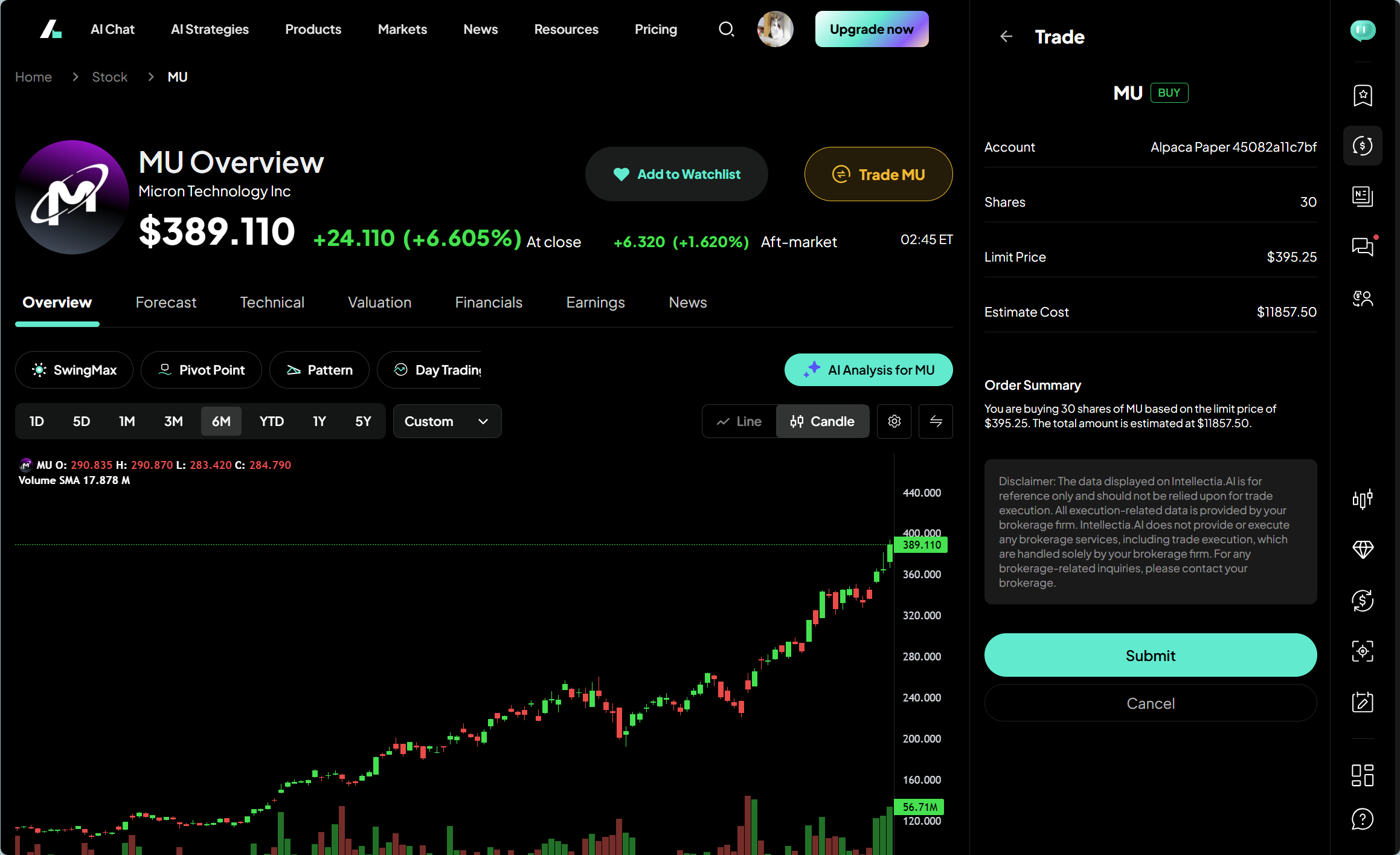
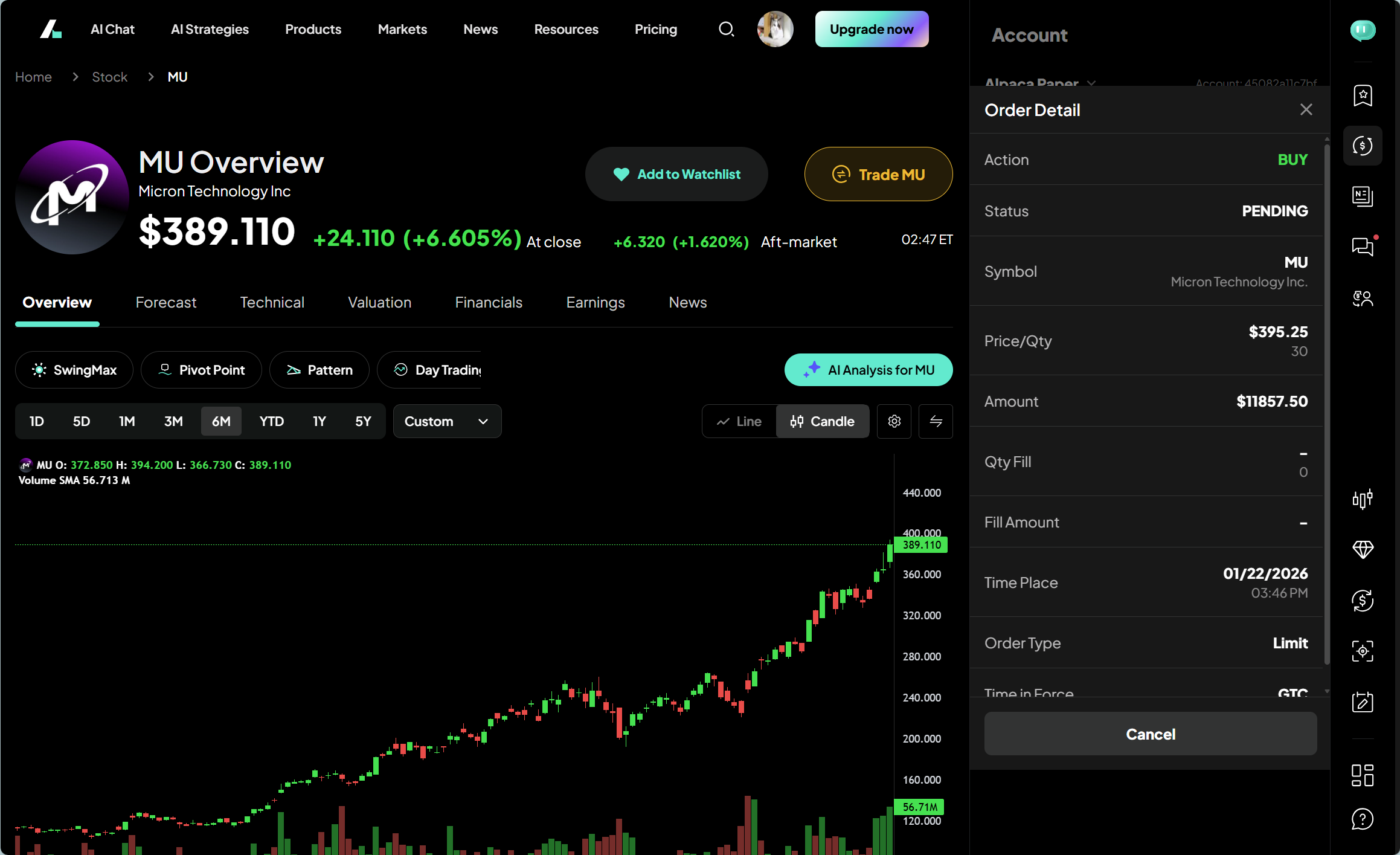
Step 7: Monitor Order Details & History
Once submitted, you can view the Order Detail to check the status (e.g., PENDING or EXECUTED). Under the History tab in your Account sidebar, you can track all past activities, ensuring your records are always up to date. You can also Cancel pending orders directly from this view if the market conditions change.
Why Use SnapTrade on Intellectia?
Security: SnapTrade uses bank-level encryption. Intellectia never sees or stores your brokerage passwords.
Efficiency: Act on AI signals the moment they appear.
Unified Management: Manage international brokers and different asset classes in one single tab.